VBcoders Guest


Don't have an account yet? Register


Forgot Password?


How to Add a Right Click/Pop-up Mouse Menu.
by KaveMan (1 Submission)
Category: Custom Controls/Forms/Menus
Difficulty: Beginner
Date Added: Wed 3rd February 2021
Rating: (4 Votes)

Step by Step on how to How to Add a Right Click/Pop-up Mouse Menu to your project.

Rate How to Add a Right Click/Pop-up Mouse Menu.


   How to Add a Right Click/Pop-up Mouse 
   Menu.


   Step 1:
   Start a New Standard .EXE Project


   Step 2:
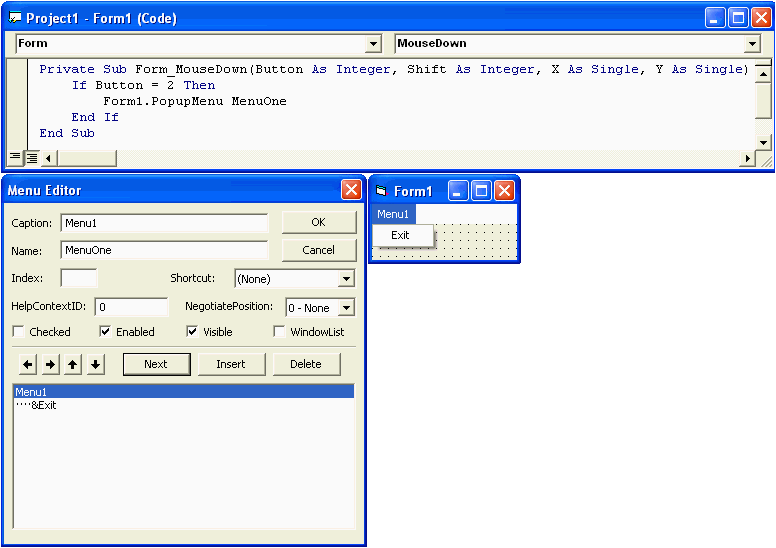
   Click on Tools > Menu editor (Opens Menu Editor Dialog)


   Step 3:
   Put 'Menu1' in the Caption then put 'MenuOne' for the 
   Name. Click the 'Next' Button.


   Step 4:
   Put 'Test1' in the Caption then put 'TestOne' for the 
   Name. Now click on the arrow that is pointing right (You should see four 
   dots next to Test1). Then click the 'OK' button.


   Step 5:
   Go to the Visual Basic Menu and click on View > Code and 
   add this:


   Private Sub Form_MouseDown(Button As Integer, Shift As Integer, X As Single, Y As Single) 

      If Button = 2 Then 

         Form1.PopupMenu MenuOne 

      End If 

   End Sub


   Step 6:
   Click on Run > Start (or press the 'F5' button on the 
   keyboard).


   Notes:
   Button 1 = Left Mouse Button

   Button 2 = Right Mouse Button

   Button 3 = Explore Left Mouse Button

   Button 4 = Middle Mouse Button

   Button 5 = Explore Right Mouse Button


Download this snippet    Add to My Saved Code

How to Add a Right Click/Pop-up Mouse Menu. Comments

No comments have been posted about How to Add a Right Click/Pop-up Mouse Menu.. Why not be the first to post a comment about How to Add a Right Click/Pop-up Mouse Menu..

Post your comment

Subject:
Message:
0/1000 characters