CustomMsgBox
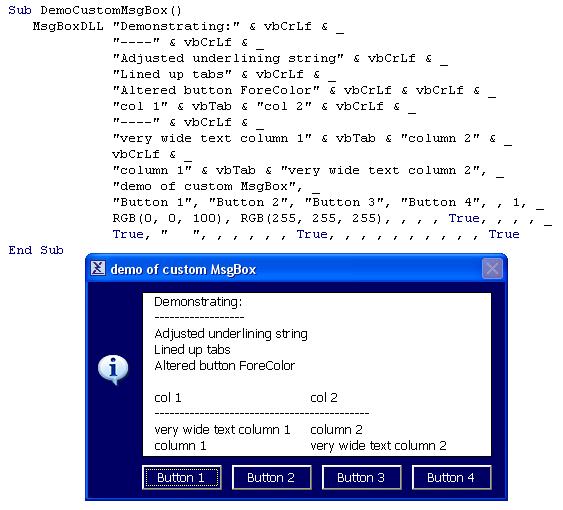
Custom MsgBox with many powerful
options as can be seen from 44 input arguments:
-----------------------------------------------
1. vPrompt - MessagBox prompt text
2. vTitle - MessagBox prompt text
3. vButton1 - caption of first button, if nil specified will be: OK
4. vButton2 - caption of second button
5. vButton1 - caption of third button
6. vButton1 - caption of fourth button
7. btDefault - sets what the default button is, so what button has focus on startup
8. lMessageIcon - set the MessageBox icon:
nil specified: no icon
1: Information
2: Question
3: Exclamation
4: Warning
9. lFormColour - long value setting the BackColor of the MessageBox form, if nil specified will be the default VB MessageBox
colour. You can do black for example as the font will be set with a contrasting colour.
10. lLabelColour - long value setting the BackColor of the Prompt textbox, if nil specified will be same as lFormColour
11. lButtonColour - long value setting the BackColor of the buttons, if nil specified will be same as lFormColour
12. lLabelFontColour - long value setting the ForeColor of the Prompt textbox, if nil specified will be a contrasting colour
compared to the Prompt BackColor
13. lMaxLen - maximum number of characters in the Prompt text before a linebreak will occur, default 125
14. bPromptBorder - boolean, if True Prompt textbox will have a border
15. bIndentAfterBreak - boolean, if true there will be an indent after a linebreak in the prompt text.
16. bOnlyIndentWithNumericFirstChar - boolean only applies if bIndentAfterBreak is True. If bOnlyIndentWithNumericFirstChar
is True then then indent will only happen if the line started with a number.
17. strIndent - the indenting string
18. bStartLineWithSpacer - if True every new line in the Prompt will start with a spacing string. Useful when the Prompt
textbox has a border.
19. strSpacer - the spacer string, only applies if bStartLineWithSpacer is True
20. siPromptButtonFontSize - Single value, button font size, default is 10
21. lMinButtonWidth - long value, minimum button width, default is 1200
22. lMinButtonGap - Long value, minimum space between buttons, default is 150
23. lButtonEdge - Long value, minimum space between button edge and button caption, default is 150
24. bSpaceButtons - if True buttons will be spaced evenly between left and right border of Prompt textbox
25. bAdjustUnderlineStrings - if True this will make the string that comes after a specified linebreak the same length as the line above. This works if this underlining string is ---- or ____, so 4 of these characters.
26. bShowTitleIcon - if True will show the title caption icon, default is True. Of course this icon can be changed.
27. bCenterPrompt - If True the text in the Prompt textbox will be centered
28. bInput - If True it will be an InputBox
29. vInputDefault - default InputBox value
30. bNumericInput - If True InputBox will only accept numeric input
31. bIntegerOnly - will only apply if bNumericInput is True. In that case only integer numbers will be allowed
32. vMinValue - will only apply if bNumericInput is True. Minimum allowed input value
33. vMaxValue - will only apply if bNumericInput is True. Maximum allowed input value
34. bBeep - Beep when the Msgbox loads
35. bLineUpTabs - if True tabs will be lined up in columns
36. strTabSpacer - string used to line up tabs, default is chr(32)
37. strTabSpacer - long value, minimum number of strTabSpacer characters to line up tabs
38. bAddTab - if True will add vbTab to spacer string, recommended to line up precisely
39. vTooltip1 - Tooltip text for button 1
40. vTooltip2 - Tooltip text for button 2
41. vTooltip3 - Tooltip text for button 3
42. vTooltip4 - Tooltip text for button 4
43. lActiveButtonColour - colour of the button that is moved over by the mouse
44. bReturnLineNumber - with a mouse right-click return the line number in the prompt where the cursor is, rather than the button caption.
Inputs
44 optional arguments as explained
Included is a demo text file that holds a Sub demonstrating all features of this MsgBox.
Assumes
Code geared up to use with Excel VBA, but can easily be altered to work with othet Office apps or VB.
Demo text file included with a Sub that demonstrates all options.
Returns
Caption of the pressed button or text of the input textbox or line number of the prompt box where the cursor is.
Side Effects
Nil that I am aware of.
API DeclarationsPrivate Declare Function GetMenuItemCount Lib "user32" _
(ByVal hMenu As Long) As Long
Private Declare Function GetSystemMenu Lib "user32" _
(ByVal hwnd As Long, _
ByVal bRevert As Long) As Long
Private Declare Function RemoveMenu Lib "user32" _
(ByVal hMenu As Long, _
ByVal nPosition As Long, _
ByVal wFlags As Long) _
As Long
Private Declare Function LoadStandardIcon Lib "user32" _
Alias "LoadIconA" _
(ByVal hInstance As Long, _
ByVal lpIconNum As enStandardIconEnum) _
As Long
Private Declare Function DrawIcon Lib "user32" _
(ByVal hdc As Long, _
ByVal X As Long, _
ByVal Y As Long, _
ByVal hIcon As Long) As Long
Private Declare Function SetForegroundWindow _
Lib "user32" (ByVal hwnd As Long) As Long
 (6(6 Vote))